Use KTool on your phone
Use the KTool mobile app to send links from your phone and share articles from other apps. Sign in to the same KTool account you use on the web so your destination and subscription match.
Install and set up
- Open the KTool download page on your phone and follow the link for your platform.
- Install and open KTool, then sign in.
- Set up your Kindle address and approved sender. You can complete these steps in the web app if that is easier.
- Try sending one public article before setting up recurring delivery.
Make KTool available in the share menu
On iPhone or iPad, open an article in Safari and tap Share. Look for KTool in the app row. If it is hidden, open More and add KTool to your favorites where available.
On Android, open the article's Share menu and select KTool from the list of apps. The menu's appearance depends on your phone and the app you are sharing from.
If KTool is missing, open KTool and sign in first, then return to the article and reopen the share menu. Share the article's link rather than selected text or an image.
Send an article
- Open the article in your browser or another app.
- Share its link to KTool.
- Review the available send options and confirm the send.
- Keep your Kindle connected to Wi-Fi and allow time for delivery.
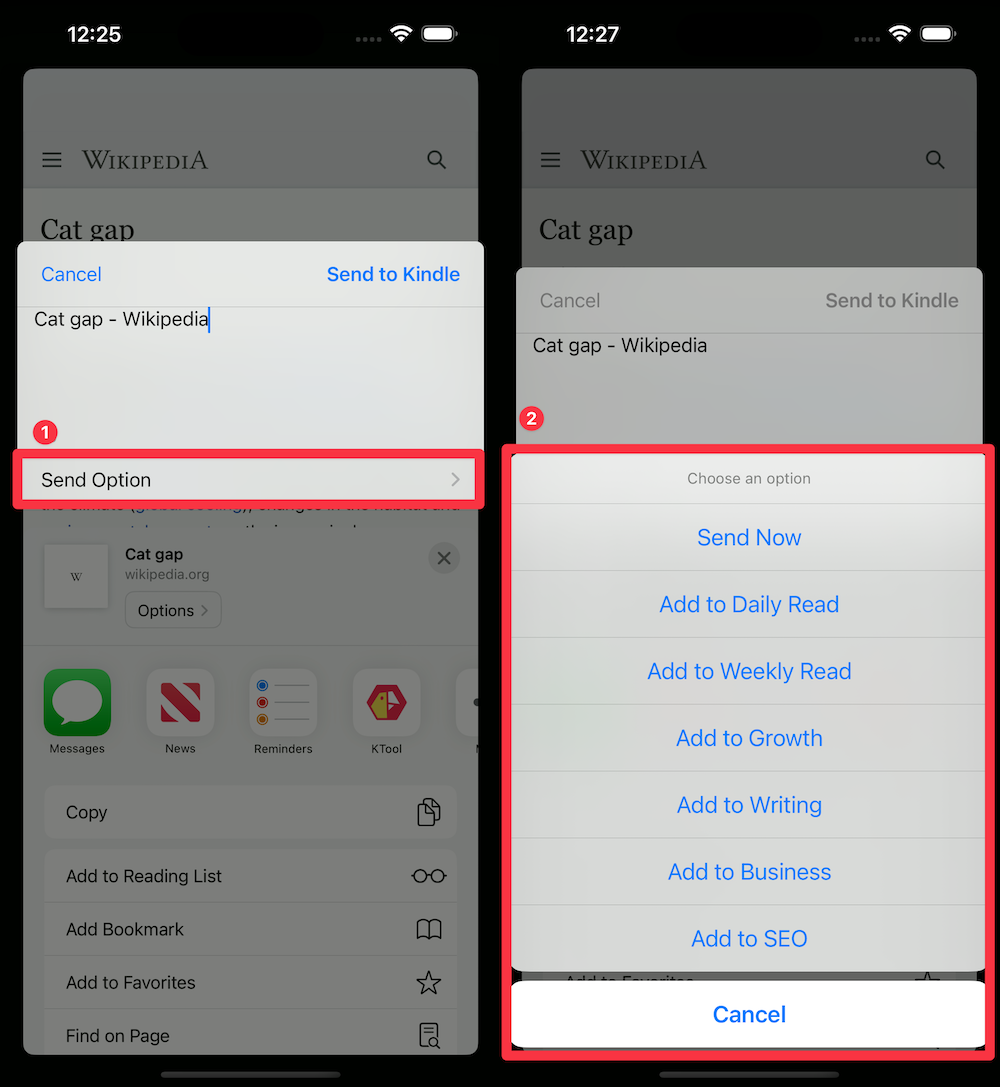
You can also copy a public article URL and paste it into Quick Send. Sharing a link from an app does not necessarily include the full page or your publisher session. For an article behind a paywall or sign-in, use the desktop browser extension on the full article after signing in.
X Articles and long-form Posts
Standard X posts and threads are not supported. For an X Article or long-form Post, use web Quick Send with a paid plan or an active trial. X preview is unavailable there; sending loads the content. See supported content.
Hacker News discussions
Share the Hacker News discussion URL, which contains item?id=, to send the discussion. Sharing the story's external link sends the linked article instead. Check Quick Send if you want to inspect the extracted content before sending.
Purchases and account access
If you subscribed through your phone, manage that subscription through Apple or Google. If your purchase is missing, check your KTool account and use Restore Purchases in the app's purchase screen. See subscription help.