Troubleshooting
Start with one public article in Quick Send. Whether its preview succeeds helps distinguish an extraction problem from a Kindle delivery problem.
An article has not arrived on Kindle
- Check the complete destination in Send-to-Kindle settings. It must belong to the device or app you intend to use.
- Copy your full Send-from address from the same page and confirm that it is approved in Amazon's Personal Document Settings. Approving only
@ktool.iois not sufficient. - Check the email associated with your Amazon account for a verification request or delivery error, including the spam folder. Follow any instructions in Amazon's message.
- Connect your Kindle to Wi-Fi and sync. Check the library's document filters and search for the article title.
- Look in History and check whether you sent immediately or added the item to a magazine. For a magazine, check its queue, time zone, and schedule.

Allow time for conversion and Amazon processing. A KTool success message does not confirm that the device has downloaded the document. Avoid repeated sends while you are checking, as these can create duplicates.
The preview is empty or incomplete
Open the full article, sign in to the publisher if needed, and wait for the text to load. Then use the browser extension, which captures the content you can see. Quick Send does not use your browser’s publisher session, so a URL preview may contain only a teaser or sign-in page. Unusual layouts can still affect extraction. For X links, preview is unavailable by design; see X support.
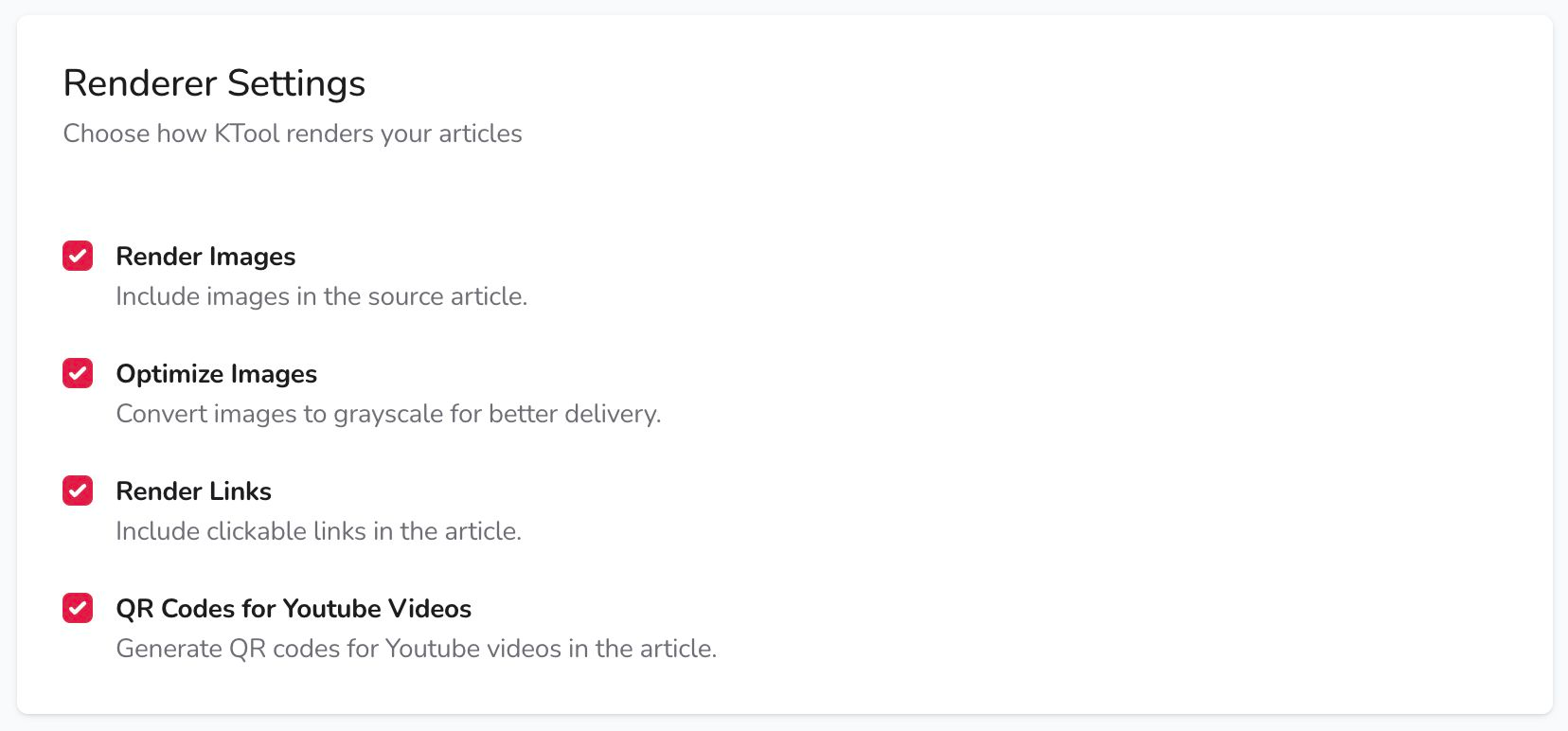
Images are missing or grayscale
In General settings, turn on Render Images. To preserve color, turn off Optimize Images. Send a fresh article to compare the result.
A file upload fails
For document delivery, use Amazon’s official Send to Kindle website, our recommended option. It accepts supported files up to 200 MB each. You do not need a KTool upload allowance or upgrade to use it.
If you are using KTool’s legacy uploader, check that your account has upload access and that the file is Markdown, DOCX, EPUB, or PDF, no larger than 20 MB. Wait for the upload to finish before sending. For a scanned PDF or complex layout, try a text-based version if you have one. See legacy upload instructions.
RSS or newsletters are missing
Check whether the destination is direct delivery, Daily Magazine, Weekly Magazine, or a custom magazine. For RSS, first check that you have a paid plan with RSS access; free and trial accounts cannot subscribe. Then confirm that the source has published a new item. For newsletters, confirm that you forwarded to your personal @inbox.ktool.io address. See the RSS and newsletter guides for setup checks.
I paid but still see an upgrade message
Confirm that you are signed in to the KTool account used for the purchase. For Apple or Google purchases, try Restore Purchases from the app's purchase screen using the store account that paid.