Read RSS feeds on Kindle
RSS requires a paid KTool plan that includes RSS access. It is not available on free or trial accounts. If you have an older Basic plan, you will need to upgrade to a plan with RSS.
KTool follows your feeds and sends new items individually or collects them in a magazine.
Subscribe to a feed
- Sign in to your paid KTool account and open RSS, then select Subscribe to a new feed in the second column.
- Enter a Substack link or an RSS feed URL and select Subscribe. You can also choose one of the suggested feeds.
- Check that KTool found the publication you intended.
- Choose a delivery destination and confirm the subscription.
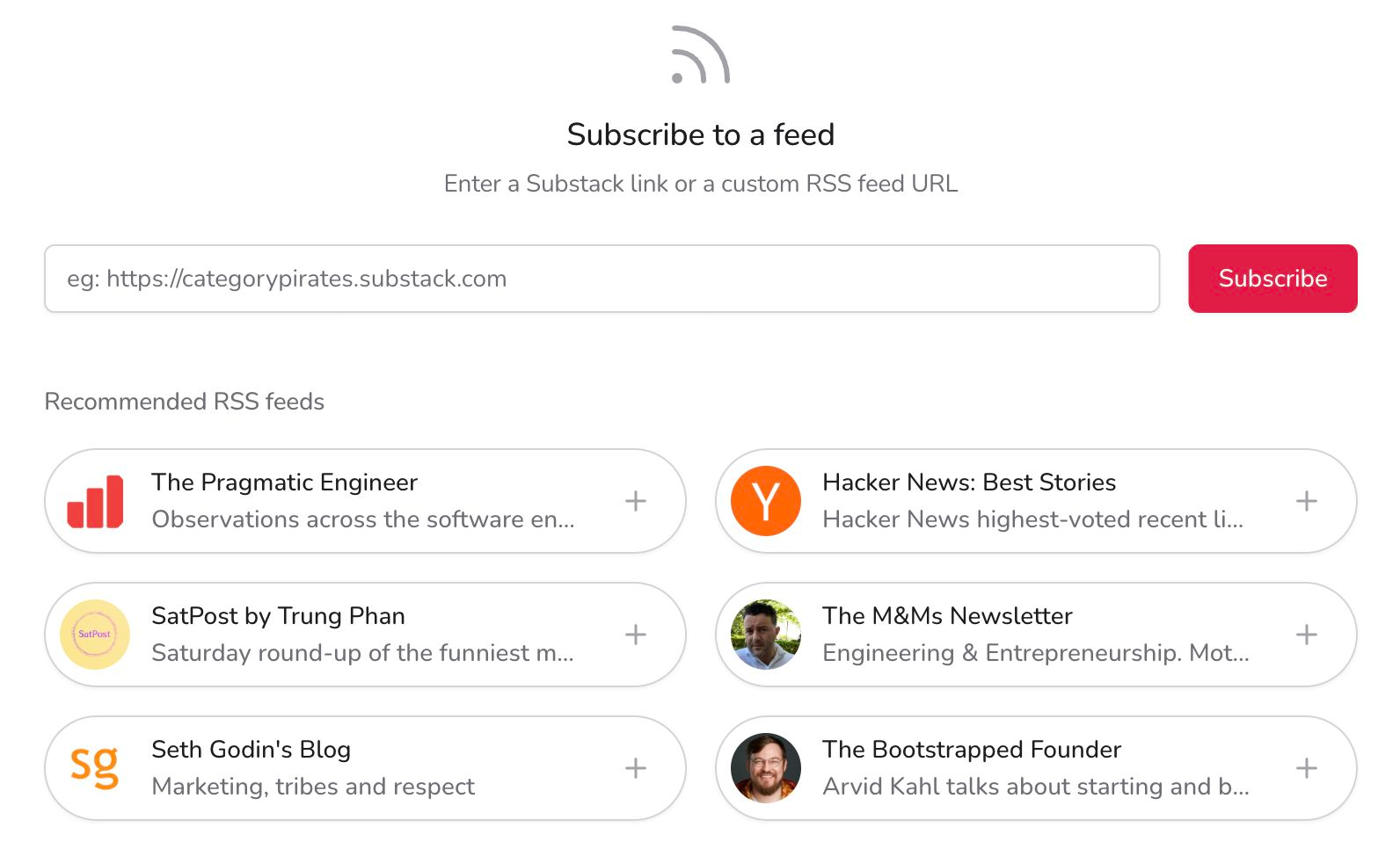
If a site's homepage is not accepted, look on that site for its RSS or feed link. Some publishers do not provide a public feed.
Choose where new items go
Choose Send directly to Kindle for separate deliveries, Add to Daily Magazine or Add to Weekly Magazine for a digest, or an available custom magazine. Set the magazine's schedule separately in Magazines.
You can set the default destination for new subscriptions in RSS settings. Check each feed's own destination when troubleshooting an existing subscription.
Understand feed content
A feed can contain full articles, short summaries, or links. The available source content and publisher access determine what KTool can extract. Subscribing to a feed does not grant access to paid articles.
RSS delivery is checked in the background, so a newly published article may not appear immediately. Do not rely on subscribing to import a publication's entire archive.
If a feed is not delivering
Check that your paid plan includes RSS. Open the source feed and confirm that it has a new item, then check the feed’s destination in KTool. If the destination is a magazine, look in that queue and check its schedule. If an individual article fails, try its URL in Quick Send.