Send articles and documents
Quick Send lets you send a public article link. Complete Kindle setup before sending with KTool. For documents, use Amazon’s official Send to Kindle, which accepts supported files up to 200 MB each through its website.
For individual articles, we recommend the browser extension. It captures the page you have open, including content behind a paywall or sign-in that you can already read. Quick Send retrieves the URL without your browser’s publisher session.
Send a web article
- Copy the full article URL from your browser.
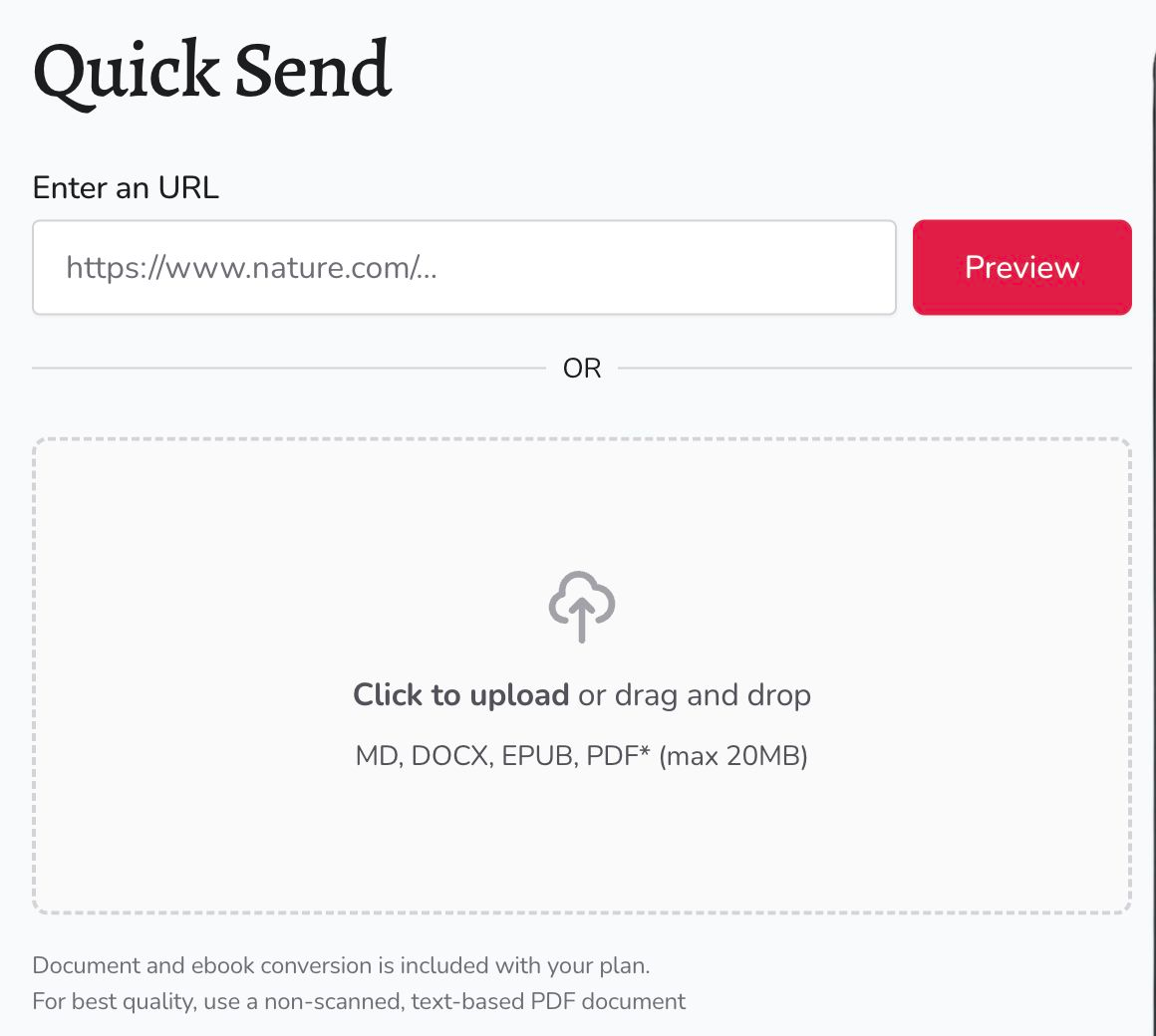
- Paste it into Quick Send and choose Preview.
- Check the extracted title, text, and images.
- Select Send to Kindle and wait for the confirmation.
- Connect your Kindle to Wi-Fi and sync its library.
Previewing does not send the article. If the preview is incomplete, sending the same URL again is unlikely to recover missing text. Try the browser extension on the loaded article or send a document you already have access to through Amazon’s Send to Kindle.
X Articles and long-form Posts have a separate flow: preview is unavailable, and Send loads the content. They require a paid plan or active trial. Standard X posts and threads are not supported.
Upload a document
We recommend Amazon’s official Send to Kindle website for PDFs, EPUBs, Word documents, and other supported files. Amazon recommends its own service for transferring documents, and the website supports files up to 200 MB each.
- Open Send to Kindle and sign in with the Amazon account you use on your Kindle.
- Choose a supported file or drag it onto the page.
- Follow Amazon’s prompts to send it to your Kindle library.
- Connect your Kindle to Wi-Fi and sync.
Legacy KTool uploads
KTool continues to support document uploads for legacy customers with upload access. For document delivery, we recommend using Amazon’s official tool instead. If you still use KTool’s legacy uploader:
- Open Quick Send and use the upload area to choose a file, or drag a file onto it.
- Upload one Markdown (
.md), Word (.docx), EPUB (.epub), or PDF (.pdf) file, up to 20 MB. - Wait for the upload and any available preview to finish.
- Review the preview where available, then choose Send to Kindle.
If your account does not have upload access, use Amazon’s Send to Kindle. You do not need to upgrade KTool to use Amazon’s service.
PDF is a supported upload format; it does not enable a PDF output option for web articles. Text-based PDFs give better results than scanned pages. Complex columns, tables, and page layouts may not survive conversion cleanly. See formats and limitations.
Find or download a previous send
Open History and search by title. Select Download beside an available article, then Generate EPUB in the dialog. When generation finishes, select Download to save the EPUB file. Download access depends on your plan and whether the content is available for conversion.
Uploaded documents and direct PDF sends cannot be re-downloaded through History. Keep your original file if you may need it again.
See send history and downloads for resending articles, unavailable items, and removing history entries.
For several articles in one ebook, use magazines. For a missing delivery, follow troubleshooting.